Open Draft (CTRL+F7)
The OPEN DRAFT (Ctrl+F7) menu is used to reopen transactions that were previously saved as draft, allowing the cashier to continue the transaction without re-entering from scratch.
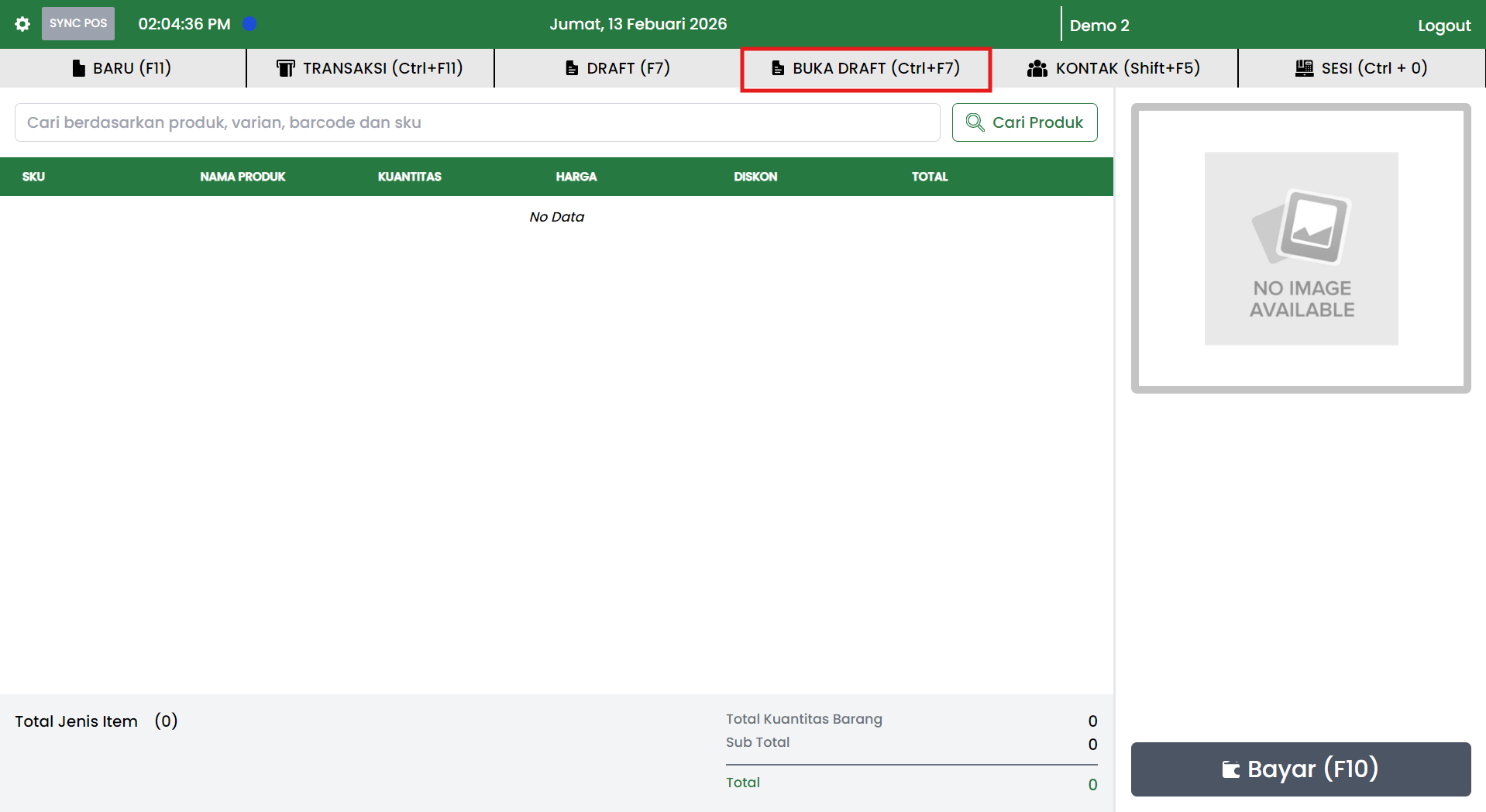
Menu Location
The OPEN DRAFT (Ctrl+F7) menu is located in the cashier page header, aligned with the following menus:
- NEW (F11)
- TRANSACTIONS (Ctrl+F11)
- DRAFT (F7)
- CONTACTS (Shift+F5)
- SESSION (Ctrl+0)
Keyboard shortcut:
Ctrl + F7
Main Functions
This menu is used to:
- Display the list of saved draft transactions.
- Open a specific draft transaction to continue.
- Ensure pending transactions are kept organized and not lost.
Usage Scenarios
This menu is typically used when:
- The cashier previously postponed a transaction and saved it as a draft.
- The customer returns to complete payment.
- The cashier wants to continue an unfinished transaction without re-entering data.
Draft Popup Display
When the cashier presses OPEN DRAFT (Ctrl+F7), the system displays a Draft popup containing a list of draft transactions.
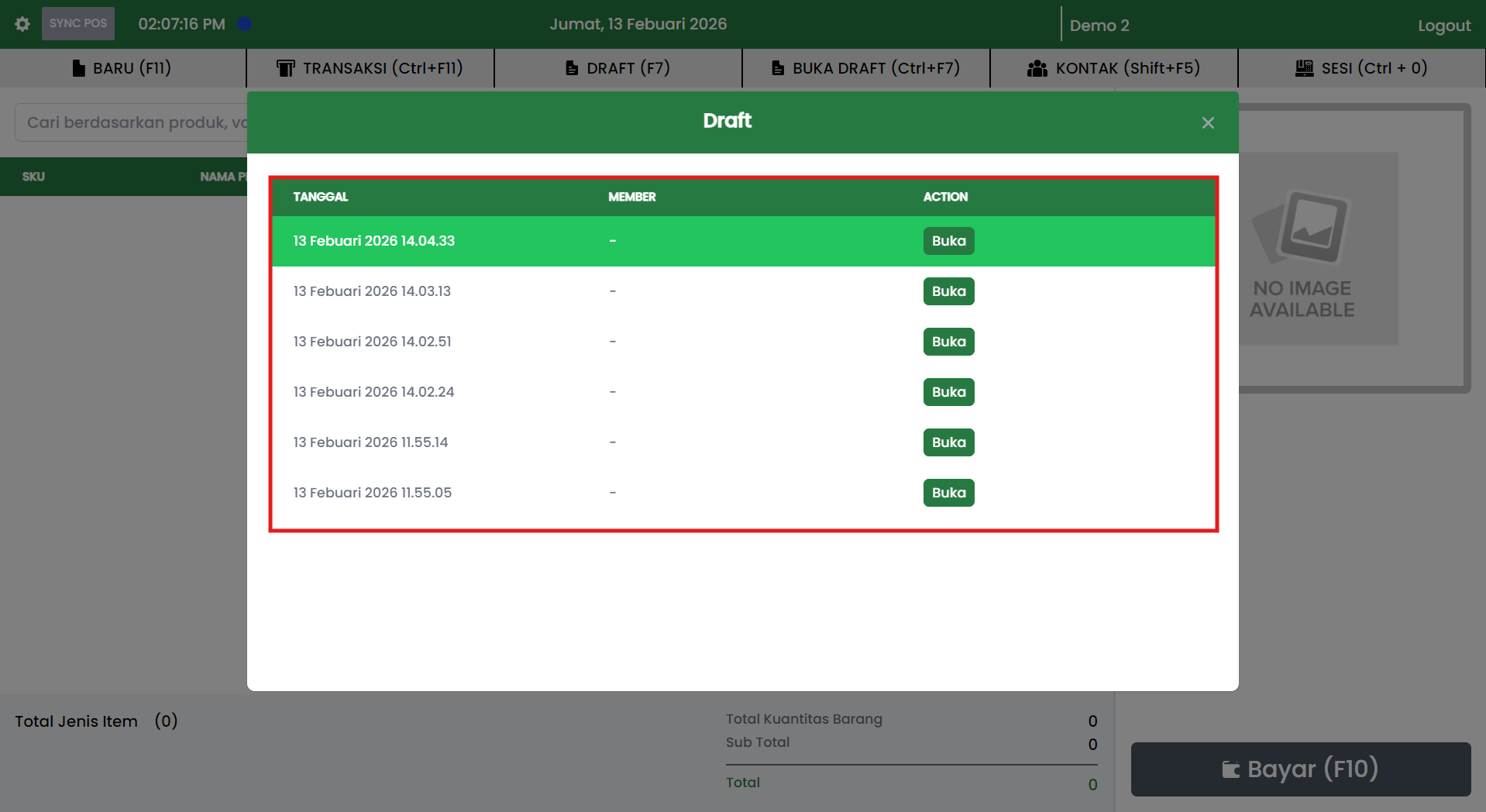
This popup generally contains the following columns:
- Date
- Member
- Action
Action Button: Open
In the Action column, an Open button is available for each draft.
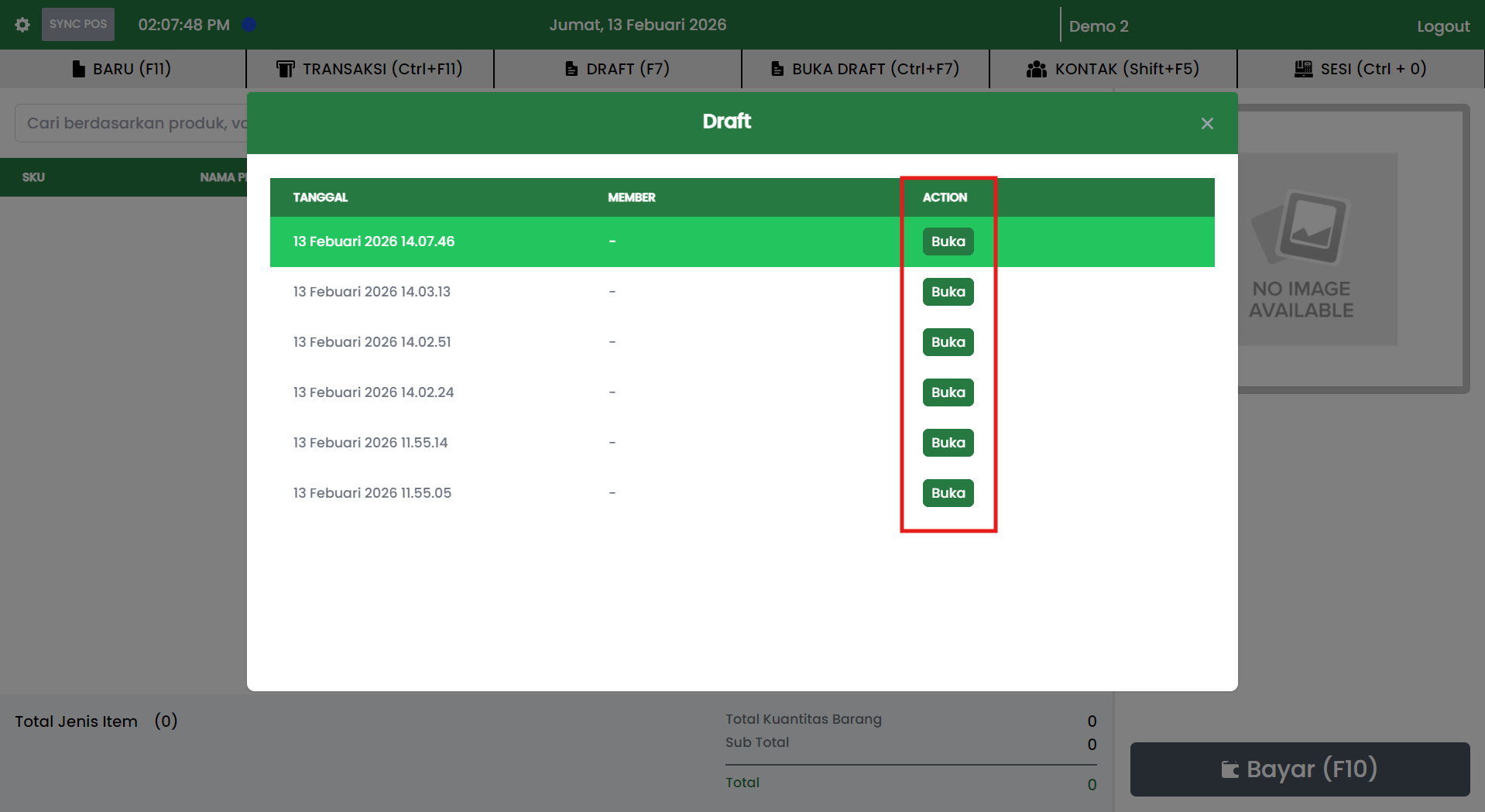
Open button function:
- Selects one draft transaction.
- Loads that draft onto the cashier page.
Opening a Draft Transaction Flow
- Press OPEN DRAFT (Ctrl+F7) on the cashier header.
- The system displays the Draft popup.
- Select the draft to continue based on the Date.
- Click the Open button on the selected draft.
- The system closes the popup and loads the draft items into the transaction table on the cashier page.
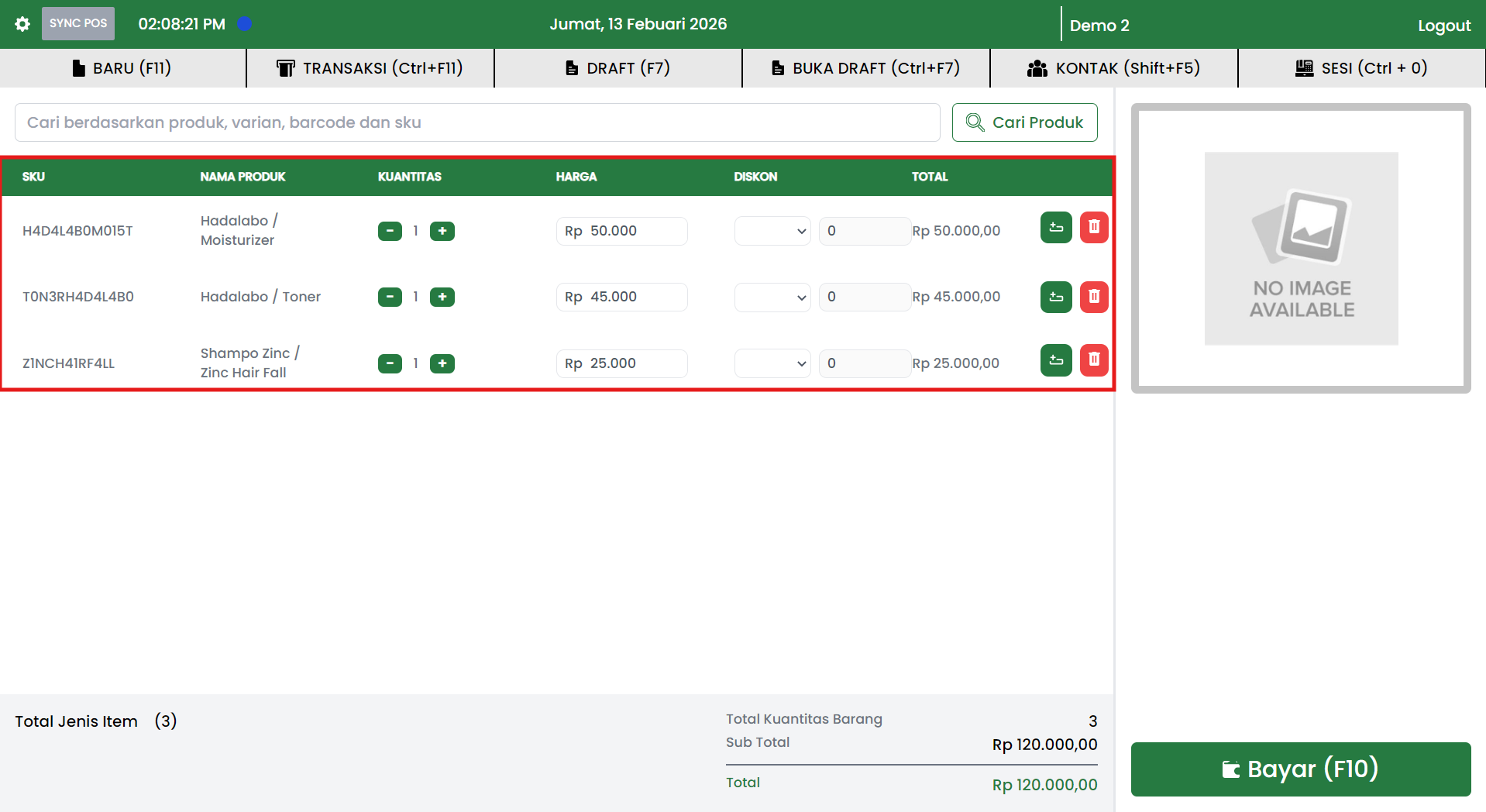
After the Draft is Opened
After the draft is successfully loaded, the cashier can:
- Add or remove items.
- Change quantity, price, or discount (according to access rights).
- Continue the payment process by clicking Pay (F10).
- Complete the transaction until successfully saved.
Important Notes
- Drafts only temporarily save transactions, not final transactions.
- If a draft is not opened and completed, the transaction does not enter the sales history.
- Make sure the cashier selects the correct draft before continuing the transaction.